Tesla toolbox 3 for one day
tesla toolbox 3 buy diagnostic
one day access
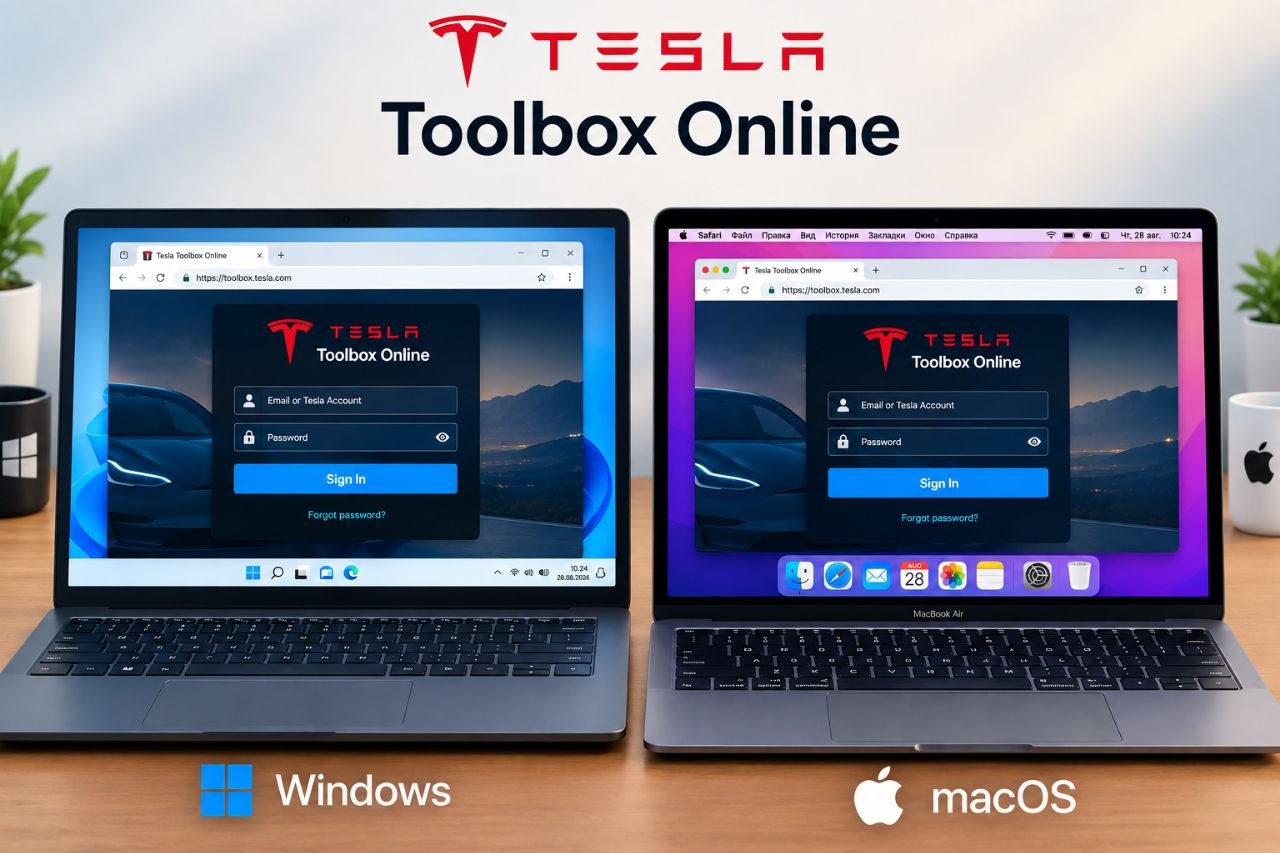
Toolbox for service vehicles capabilities include:
- Ability to physically connect to the car with a laptop to view information and execute commands
- Ability to place the vehicle in Service Mode Plus to access and diagnostics applications
Toolbox Web Vehicle Connections and Set Up
Local connections require a diagnostic Ethernet cable.

Initial Set Up
Initial setup may vary, depending on operating system.
These instructions are designed for Windows 10.
- Open the Windows "Control Panel".
- Open "Network and Sharing Center". ("Network and Internet" may need to be clicked first.)
- Click on the Ethernet connection in the Connections section.
- Click the "Properties" button.
- Select "Internet Protocol Version 4 (TCP/IPv4)".
- Select the "Properties" button.
- Select the "Use the following IP address" radio button.
- Enter the IP Address "192.168.90.125".
Note: if this address conflicts with something else on your network, use any IP address from 192.168.90.125 through 192.168.90.255
- Click "OK".
- Click "Close" on the remaining popup windows.
Allow Toolbox Communication
To allow Toolbox to communicate with Tesla vehicles, the following change must be made in Chrome:
- Click the "Lock" icon to the left of the Toolbox URL.
- Click "Site settings".

- For the “Insecure content” setting, select “Allow” .
Close the “Settings” tab.
- Reload the Toolbox webpage.
Connecting to the Vehicle
After completing the initial setup, connect to the vehicle with a laptop.
- Plug the Ethernet diagnostic cable into the laptop.

- Plug the other end of the cable into the diagnostic port of the vehicle.
- Location of the diagnostic port varies per model. See the Service Manual > Best Practices > Diagnostic Connector Location to learn where the port is on the model being diagnosed.
- In Toolbox, click "Connect to Vehicle" link in the black bar on the left.
- The Connect Locally popup appears.

- Click the "Connect" button.
Chrome may present a shield in the URL bar, blocking access. If so, see the "Allow Toolbox Communication" section above.
The grey circle should turn green indicating a successful connection. Once connected, Actions and Dashboards in Toolbox Web can be used on the vehicle.
To search and run Actions:
- Connect to a vehicle
- Select the "Actions" tab under the search bar.
- Search for the Action by other using part of the Action name or searching for the full Action name.
- Click on the intended Action.
- Click on "Run".
How to unlock gateway:


 Chat Now ! our whatsapp number 24/7 +38 050 809 2007
 Telegram @hddhelpcomua


